
How to download Instagram videos without watermark: copy the right link
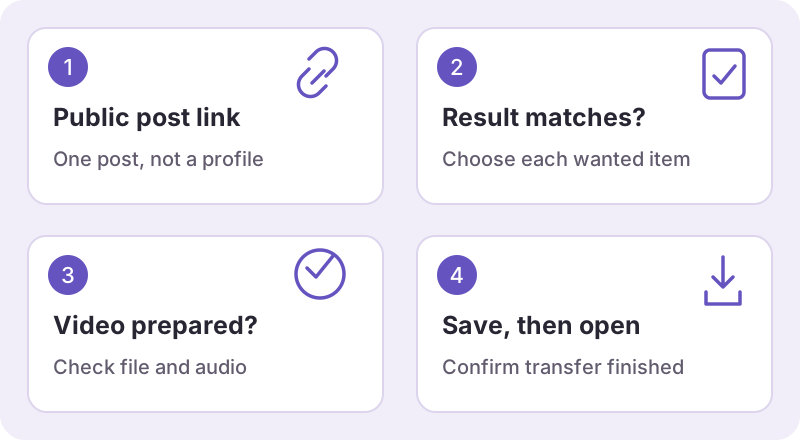
Open the specific public Instagram video, Reel or photo post and use the share menu to copy its link. In a desktop browser, you can also copy the address of the individual post. A profile URL does not identify one downloadable item.
Use your own content or material you have permission to save and use. Public accessibility does not give you permission to republish it. “Without watermark” here means Watermaker does not add a mark; text, usernames or logos already in the source remain.
2. Paste, check the result, and save
- Open the Instagram download tool or the Reels page.
- Paste the public link and choose “Get download links.” The form only submits when you ask.
- Check that the result matches the item you wanted. A carousel can have images and videos, each with its own card.
- For video, choose “Prepare video.” The service checks the file and available audio before offering “Save video.”
- Use the final save link and check your browser’s downloads list. A preparation status is not a completed download.
Keep the page open while the file is being prepared. Results are short-lived; if one expires, submit the original post again. The service does not require an Instagram password, app or extension.
On iPhone or iPad: start with Files
Use a browser that offers the file-saving operation, finish the download, and open its downloads list. Apple explains that Safari downloads can be reached from the Downloads button; downloaded files can also be found in Files under Browse, iCloud Drive and Downloads. Your configured storage location can differ.
A file in Files is not automatically in Photos. Open the saved video and use the system’s available sharing or saving options if you want a compatible file in Photos. Available menu names and options depend on the OS, browser and file, so do not assume a missing gallery item means nothing downloaded.
See Apple’s download-location instructions. Menu names and available save options vary with your system, browser and file.
On Android: check the browser’s downloads
After choosing the final save link in Chrome, check Downloads from its menu or use the device’s Files app. Chrome’s official help also describes holding a supported link and choosing its download command. Some media opens a player first; use the browser’s available save control rather than downloading an unrelated app.
Wait for the transfer to complete, then open the local file. The system’s file manager and folder names can differ between manufacturers. A browser history entry or an open video tab is not the same as a complete saved file.
Read Chrome’s Android download help for the current browser controls.
On Windows: use the completed download entry
In Chrome, Edge or another supported browser, choose the final file link and use the downloads list to locate the completed item. Depending on your settings, the browser can use a default Downloads folder or ask you to select a destination.
If the item is still marked as partial or downloading, wait for completion before treating it as a backup. Open it from the chosen folder and check the picture and sound. The location is controlled by the browser and your settings, not by a folder created by Watermaker.
On Mac: distinguish playback from saving
Use Safari’s downloads list or Finder to locate the file after its transfer completes. If a link opens media in a tab, that can be streaming rather than a persistent saved copy. For supported links, Safari also offers a Control-click download command.
Apple’s Safari download guide explains the available controls and incomplete-download checks. A file that does not open may be unfinished or incompatible with the selected player; it is not automatically evidence that the original Instagram post is broken.
Check the file before relying on it offline
Open the local file, seek near the end and check its sound. If offline use matters, confirm that the file still opens after the network is disconnected. A bookmarked post, cached thumbnail or prepared link is not an offline copy.
For missing sound, use the audio checklist. For dimensions or blur, read the quality guide. If the source or result fails altogether, the failure guide helps you choose the next step.
Guide scope: Device instructions follow the linked official browser documentation. They are general guidance, not a hardware test of every phone and browser combination.